
What Is Included in CineLook 1.0?
A factual overview of what CineLook 1.0 currently includes: 46 Looks, Studio editing, Compare, scopes, AI Color Analysis as guidance, Layers, History, Batch, image export, and .cube LUT delivery.
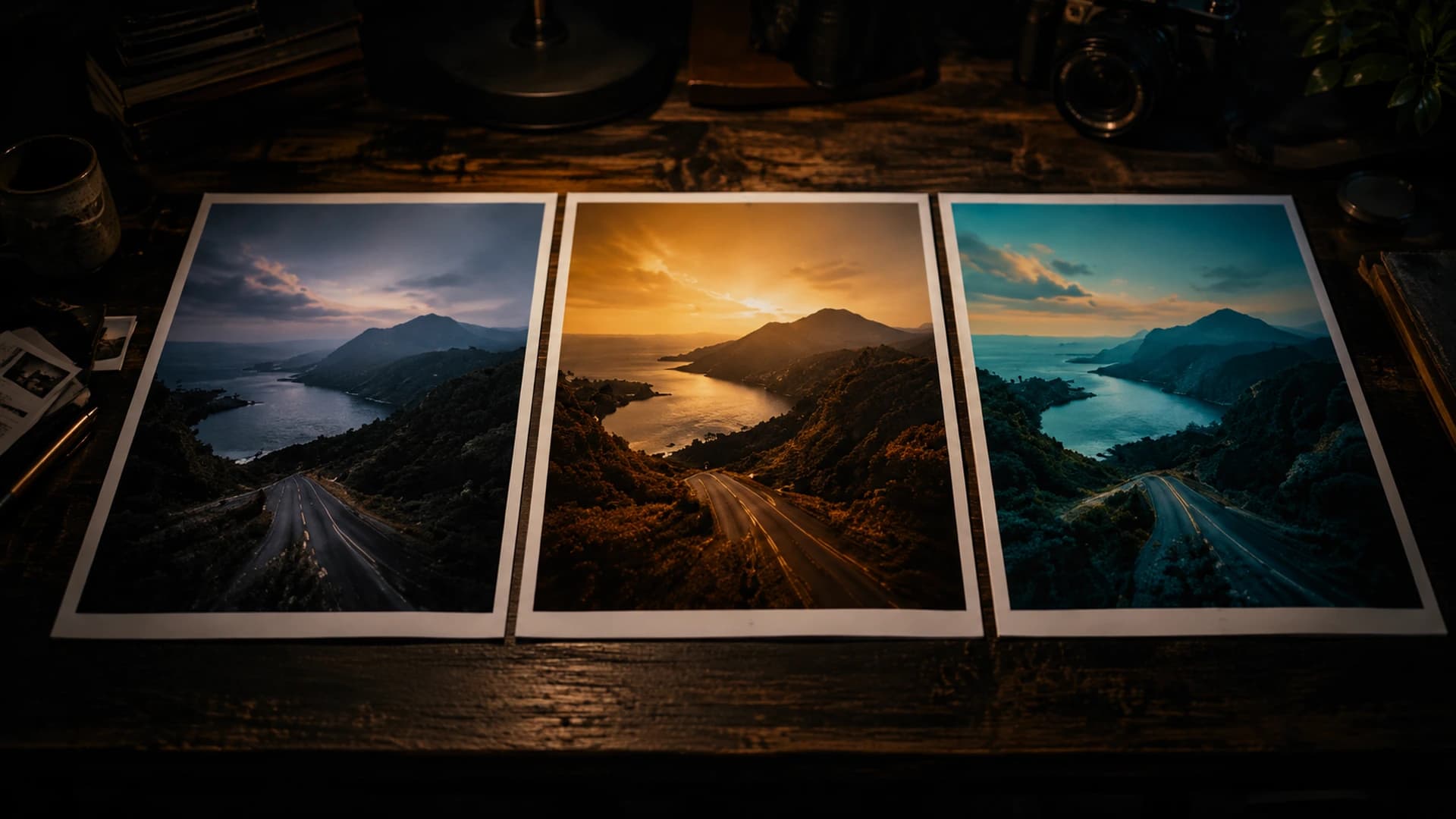
1. CineLook 1.0 Is a Complete First Workflow
CineLook 1.0 establishes a connected workflow around four practical stages: discovering a visual direction, applying and refining a Look, evaluating the result, and exporting finished work. It is a focused visual workflow, not a replacement for a full professional finishing suite. Each stage is explicit, and the photograph stays at the center. Availability of particular exports and usage levels follows the membership information shown in the product.
- Discover a visual direction.
- Apply and refine a Look.
- Evaluate with Compare and scopes.
- Export the finished image or LUT.
2. The Looks Library
The current library contains 46 Looks across film-inspired, print, camera-color, specialty, cinematic, commercial, and creator-oriented directions. Looks are visual starting directions for exploration, not automatic finished grades. Their names describe intended character. Film- and camera-inspired names do not imply official manufacturer affiliation or exact physical reproduction.
Categories group directions for discovery, but a Look is chosen for the image, not for its category label. A clean commercial direction, a restrained film-inspired negative, or a dense genre treatment can all be the right starting point depending on the scene.
3. The Studio
Studio is the image-centered workspace. Import accepts JPEG, PNG, and WebP files, plus TIFF files on supported desktop layouts when TIFF support is enabled, and the loaded photograph remains the reference for every decision. Replace works the same way when a newer capture arrives. Tools stay available around the workspace without turning the screen into a dense control dashboard.
The workspace keeps the primary image, selected Look, adjustments, scopes, and comparison available so each decision can be evaluated in context rather than in isolation.
4. Look Selection and Continuity
A direction discovered in the Looks library can continue into Studio rather than becoming a disconnected preview. When a Look is opened from a public page, the same starting grade arrives selected in the workspace. The decision and the work stay connected in one session.
This continuity reduces the friction between exploration and editing. Users do not need to remember a Look name or rebuild its starting grade; the same direction is already in the workspace.
5. Adjustment Tools
Adjust is where a chosen direction is refined. The current control set includes Exposure, Contrast, Highlights, Shadows, Temperature, Tint, Saturation, Vibrance, Film Grain, Bloom, Vignette, and Highlight Rolloff. These controls refine an existing direction; they do not replace the choice of a Look.
Because the goal is refinement, the order usually follows a simple loop: choose a Look, adjust the relationships that matter, compare, and decide whether the change helped.
6. Compare
Compare keeps Original and Graded available as a direct visual test. It is the practical tool for checking whether an edit is improving the image, catching excessive contrast or saturation, and reconnecting with the source photograph before the grade starts to feel normal.
Compare is not a verdict. It is a reminder of where the image started, which makes it easier to notice when a treatment has moved too far from the source.
7. Scopes
RGB and Luma histograms describe the rendered canvas and support tonal and channel analysis. They are analytical support, not creative authority. A histogram can show where values sit; the creator decides whether that distribution serves the image.
8. AI Color Analysis
AI Color Analysis measures color and tonal characteristics and can provide observations and Look recommendations. It is guidance and another analytical perspective. It does not automatically grade the image, decide the creative direction, or replace the creator's judgment.
9. Layers
Layers support composition inside the workspace: image layers can be added and arranged, and text layers can be placed, resized, and rotated. Layers are part of organizing a composed result; they do not turn CineLook into a full compositing application.
10. History
History supports iteration by letting the user step backward through changes. It is a working edit history, not unlimited permanent versioning or cloud project history.
11. Crop
Crop supports framing decisions with common aspect ratios including Free, 1:1, 4:5, 4:3, 16:9, 3:2, and 9:16. It is a composition tool used when the frame benefits from it.
12. Image Export
Finished images can be exported as JPEG, PNG, WebP, or TIFF. Resolution choices include Original, 1920×1080, 3840×2160, and custom, with cover or contain fit and quality where relevant. Export authorization follows the current membership boundaries, so a visible control is not a promise that every account has every option.
The Export panel collects format, resolution, fit, quality, filename, and included content before producing the file, so delivery is a deliberate step rather than an accidental one.
13. .cube LUT Export
A separate .cube LUT export generates color mappings at 17, 33, or 65 grid points, with 33 as the default. The file identifies Rec.709 / sRGB encoded RGB input and output. A LUT carries global color mapping, not the composed image: spatial effects such as Grain, Bloom, and Vignette, plus crop, text, layers, and dimensions, are excluded.
14. Batch
Batch provides a queue-based workflow for supported images. A user chooses a Look, imports files, reviews previews, and exports eligible PNG, JPEG, WebP, or TIFF results with visible processing states. Batch repeats an established direction across multiple images; it does not normalize different captures or replace individual review, and it is not distributed cloud rendering.
Batch is most useful after a direction has already been tested in Studio. The review step matters because different captures respond differently to the same Look.
15. Academy
Academy is the learning layer around the product. Its lessons connect Looks, Studio, scopes, and complete workflows so users can understand a decision and then practice it in the same environment. Academy, Looks, and Studio are related parts of one learning-and-editing loop.
The current published Academy lessons cover first edits, Look selection, exposure, scopes, night grading, LUTs, series consistency, and complete workflows, giving users a practical path from concept to practice.
16. Membership and Access
CineLook 1.0 is currently available as a product preview. Free access is available now, with export and Batch boundaries enforced by the current membership rules shown in Pricing and at the point of use. Pro and Studio appear in Pricing as planned membership positions; their current availability is indicated there. This article does not replace those rules or imply that paid subscriptions are available when Pricing says otherwise.
Accounts and membership enforcement are active in the product preview, so export limits and Batch boundaries are real constraints rather than interface decoration.
17. What CineLook 1.0 Does Not Try to Be
CineLook 1.0 does not pretend to be a replacement for every professional image editor, a full compositing application, an autonomous AI colorist, or a video finishing suite. Its purpose is narrower and more focused: a connected workflow around photographic color and visual direction.
18. The Meaning of “1.0”
The 1.0 label defines the product's first coherent production baseline, not everything CineLook will ever contain. It describes the core workflow and design principles that are available today. Future development can extend that foundation without changing what 1.0 actually includes now.
The design principles, the workflow, and the current capability set define what users can rely on today.
CineLook 1.0 is a connected set of tools for choosing, shaping, checking, and delivering a visual direction.Open CineLook Studio