
Online .cube LUT creator
Create a .cube LUT from your photo grade.
Find your color direction in the browser. Choose a Look, refine it on your photo, and take the color transform into your next edit.
Preview before upgrading. LUT export requires sign-in and Pro or Studio.
One image. A reusable color direction.
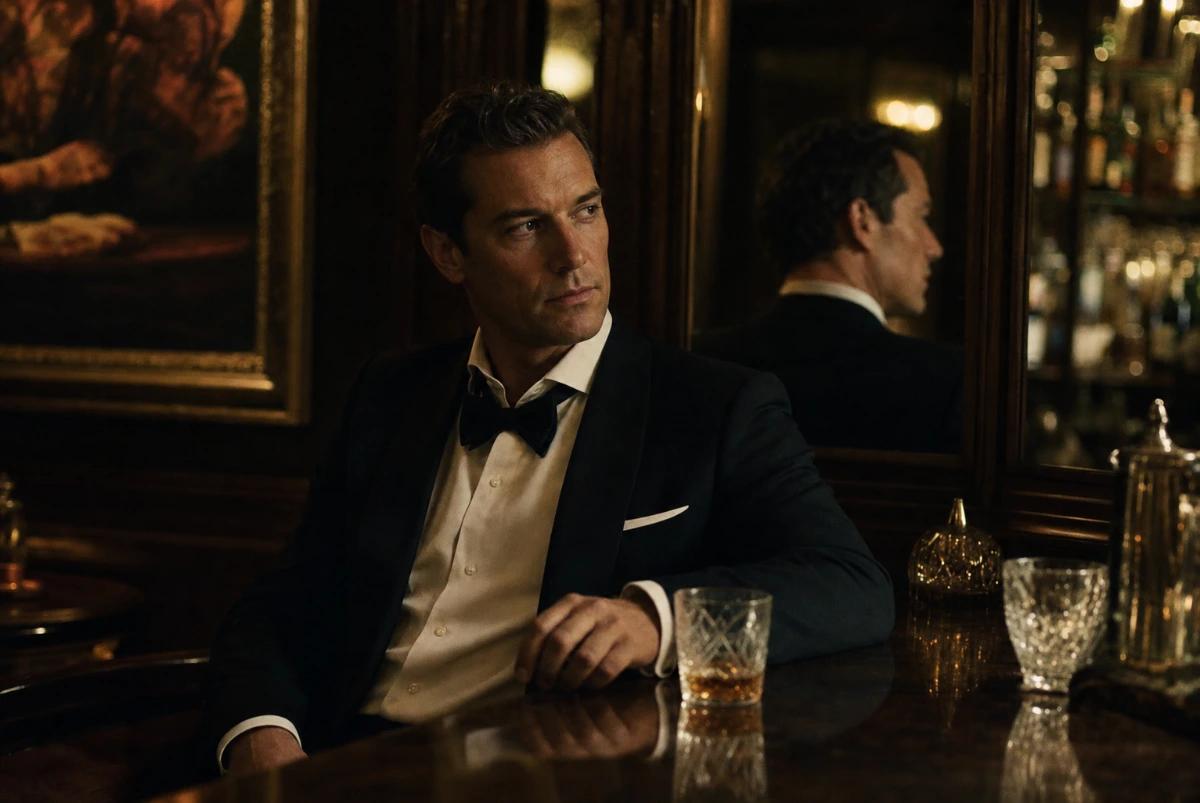
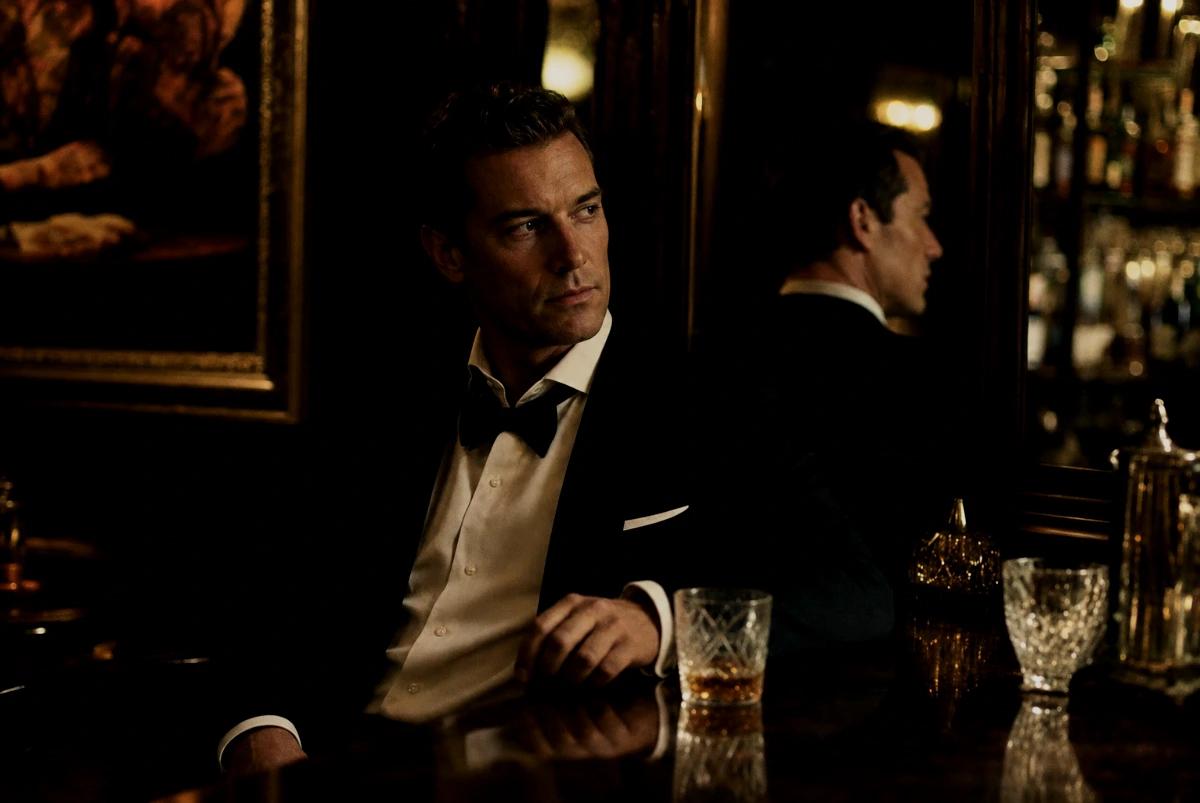
The same input rendered through CineLook’s color pipeline with the Modern Drama Look. This example contains color changes only; grain, bloom, and vignette are excluded. Your result will depend on your source image.
From photo to file
Build it on an image you know.
01
Start with a photo
Open Studio and import a JPEG, PNG, or WebP. Choose an image that represents the lighting and colors you want to work with.
Your first edit02
Make the grade yours
Choose a Look, then refine its intensity and your color adjustments. Judge the result on your image before committing to a reusable transform.
Explore the Look library03
Export the color transform
Sign in with Pro or Studio, choose an included LUT size, and export a .cube file. Apply it in a compatible editor with the appropriate color-management settings.
Compare export plansKnow your output
A LUT carries color.
A .cube file maps input colors to output colors. It preserves the color part of your grade, rather than everything visible on your Studio canvas.
Read what LUTs can and cannot doIncluded in the color mapping
The selected Look and the main image’s color adjustments, sampled into a reusable three-dimensional color grid.
Kept in the image, not the LUT
Film grain, bloom, vignette, text, crop, and other spatial or layer effects. Export a finished image when you need those effects baked into the result.
Prepare the source in your editor
This is a creative color transform, not a camera Log, RAW, ACES, or HDR conversion. Check the input color space and where you apply the LUT in your editor’s processing chain.
Export options
Choose a grid your workflow supports.
| Plan | .cube LUT export |
|---|---|
| free | Not included |
| pro | 17 / 33 grid sizes |
| studio | 17 / 33 / 65 grid sizes |
Larger grids sample more points and produce larger files. Check your editor’s supported sizes and compare the result on representative material before applying the LUT across a project.
Before you export.
Can I create a LUT for free?
You can explore Studio and preview your photo grade without a paid plan. Exporting a .cube LUT requires sign-in and an active Pro or Studio entitlement. The Free plan does not include LUT exports.
Does this extract a look from any reference image?
No. You build a grade on your own image using the available Looks and adjustments, then export its color mapping. This workflow does not automatically copy the colors of an arbitrary reference image.
Will the LUT look identical on every photo or video clip?
No. Results depend on the source image, exposure, color space, and the editor's processing order. Check representative frames and make individual adjustments where needed. A single creative LUT is not automatic shot matching.
Is a larger LUT always better?
A larger grid samples the color transform more densely, but also creates a larger file. Choose a size supported by your editor and compare results on your own material. A larger grid does not correct the wrong color-management setup.
Start with your own photograph.
Find a direction, refine the color, then choose the export you need.